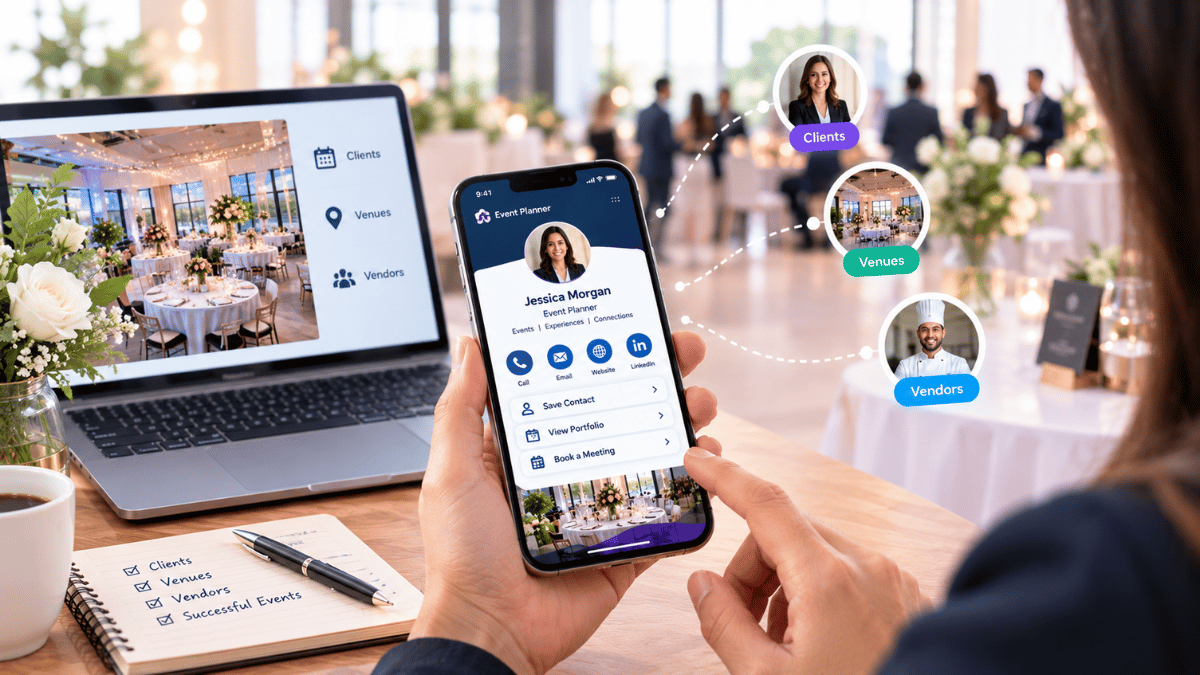

In today's fast-paced digital world, a paper business card often ends up lost in a wallet or thrown away. Creating a Signify digital business card is the modern solution, allowing you to share your professional identity instantly, seamlessly, and without wasting paper.
Whether you are attending a networking event, meeting a new client, or simply want a cleaner way to share your contact details, a digital card ensures your information is always up to date. With Signify.ink, you can create a stunning, interactive profile that lives right in your pocket.
This comprehensive guide will walk you through the entire process of setting up your very first digital business card using the Signify mobile app. From adding your personal details to sharing your card via a smart QR code, we cover everything you need to know to get started today.
- Your preferred professional email address and phone number.
- A high-quality profile picture (a clear, well-lit headshot works best).
- A company logo or a high-resolution cover photo (optional but recommended).
- Links to your professional social media profiles (LinkedIn, Twitter/X, etc.).
Open the App and Log In
Start by locating the orange Signify app icon on your smartphone and tap to launch it. The app is your central hub for managing your digital identity, tracking analytics, and sharing your contact information.
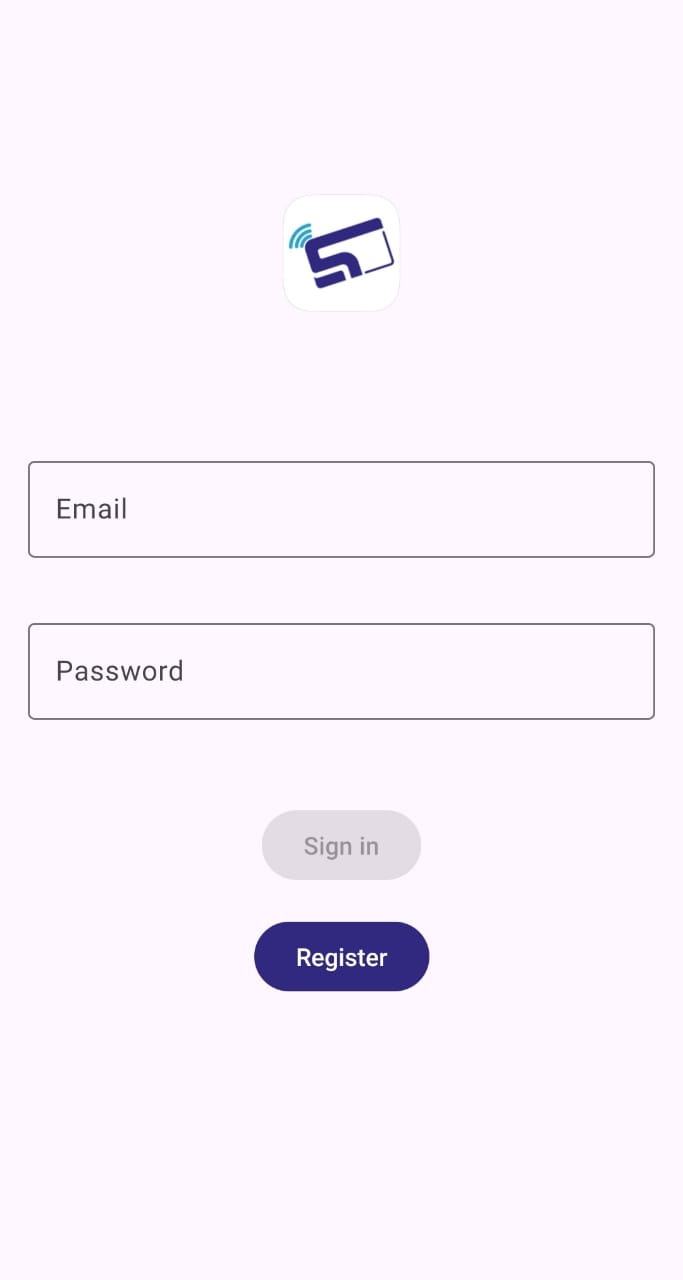
- If you are a returning user, enter your email address and password to log in securely.
- If you have forgotten your credentials, simply tap the "Forgot Password" link. Follow the instructions sent to your email to reset it.
- If you are brand new to Signify, you will need to register an account first. You can do this by visiting Create a Card on our website.
Tap the "+" Button
Once you are logged in and looking at your main dashboard, locate the bottom navigation bar. Tap the central Plus (+) icon to start building your new digital profile.
Note on Free Limits: If you see a message that says "Subscribe to add more cards," you have reached the limit for the free tier. You can tap "OK" to manage your existing card or explore our Signify plans and pricing to unlock unlimited cards and premium features.

Enter Your Personal Details
This step is about establishing your professional identity. Fill in the fields accurately and professionally, as this is what your new contacts will see first.
- Name: Your full name as you wish it to be displayed (e.g., Jane Doe).
- Job Title: Keep it clear and recognizable (e.g., "Sales Manager," "Freelance Designer").
- Department (Optional): Useful for larger organizations to help route inquiries.
- Company Name: Your business or employer. If you are a freelancer, "Self-Employed" or your DBA name works perfectly.
Add Photos (Optional)
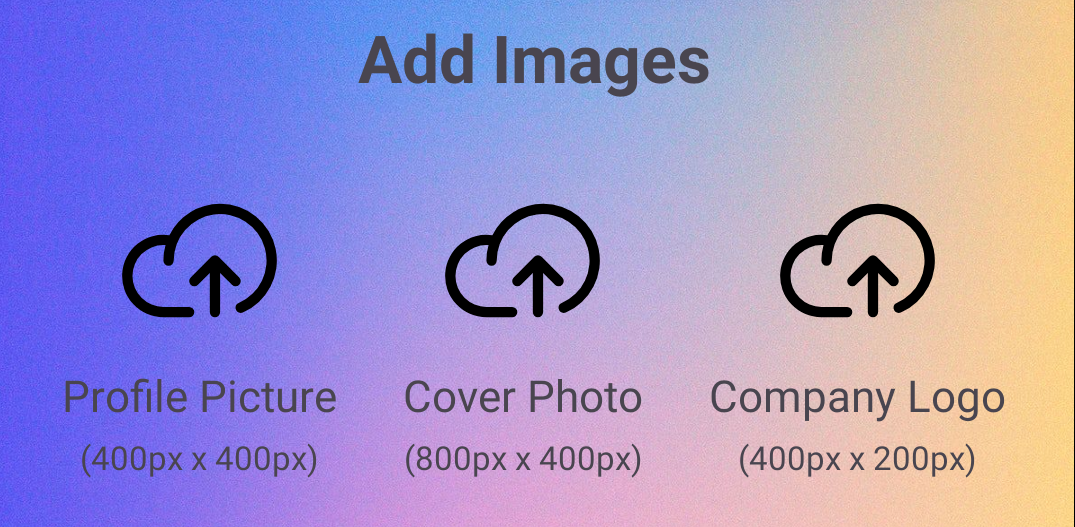
Visuals make a massive difference in how your card is perceived. A well-designed card with photos is far more memorable than a plain text list.
- Profile Picture: Tap the round placeholder to select a clear headshot from your phone's gallery.
- Cover Photo: Tap the banner area at the top to add a background image. This could be a picture of your city, your office, or an abstract brand pattern.
- Company Logo: Tap the logo square to upload your organization's logo. This instantly adds credibility and brand consistency.
Add Contact Methods
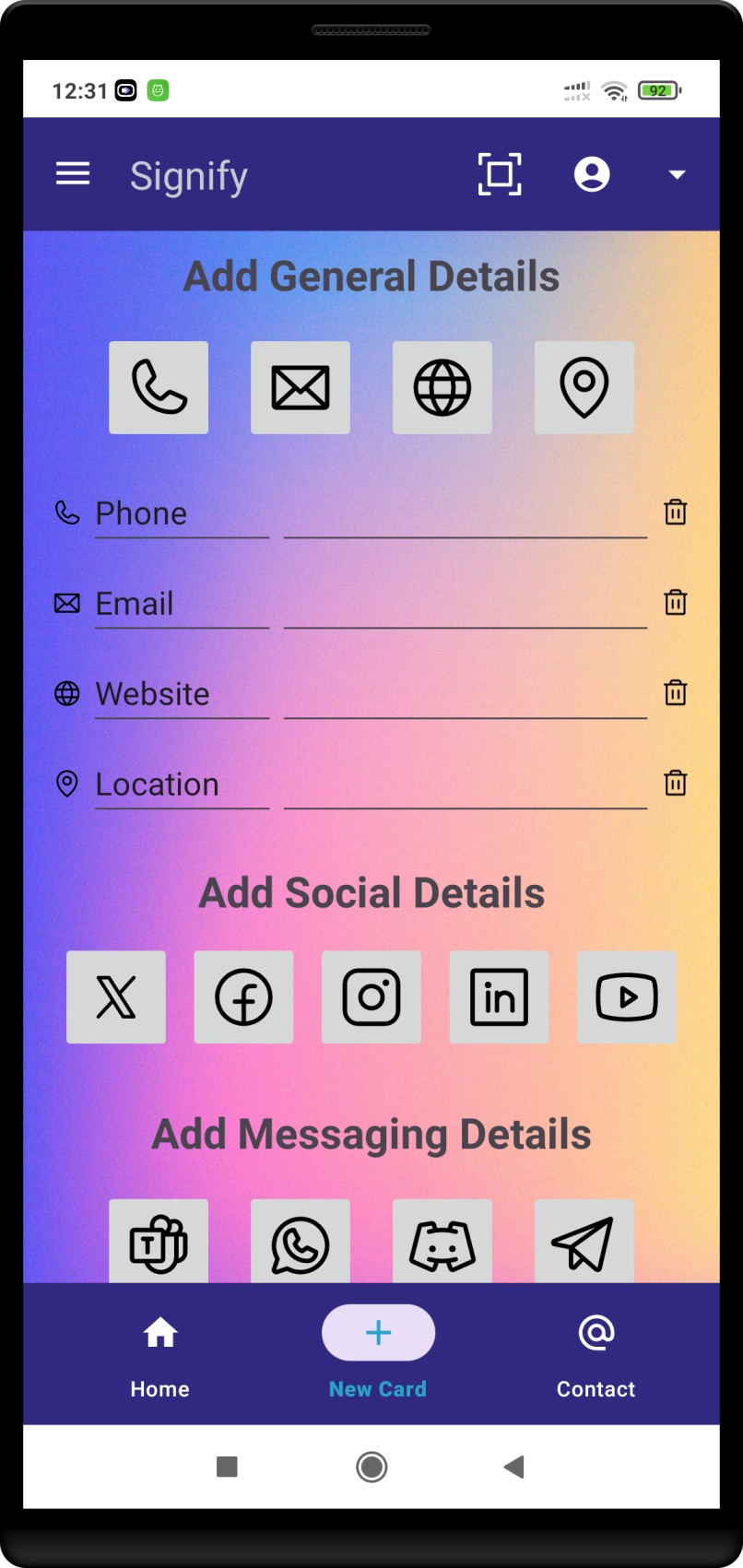
A digital business card is useless if people cannot contact you. Scroll down to the contact methods section and add the ways you prefer to communicate.
- Tap a category such as Phone, Email, Website, or Address.
- Type your information accurately into the field that appears.
- You can also add social profiles like LinkedIn, X (Twitter), and even messaging apps like WhatsApp or Telegram.
- If you make a mistake or want to remove an entry, simply tap the trash can icon next to the field.
Save Your Card
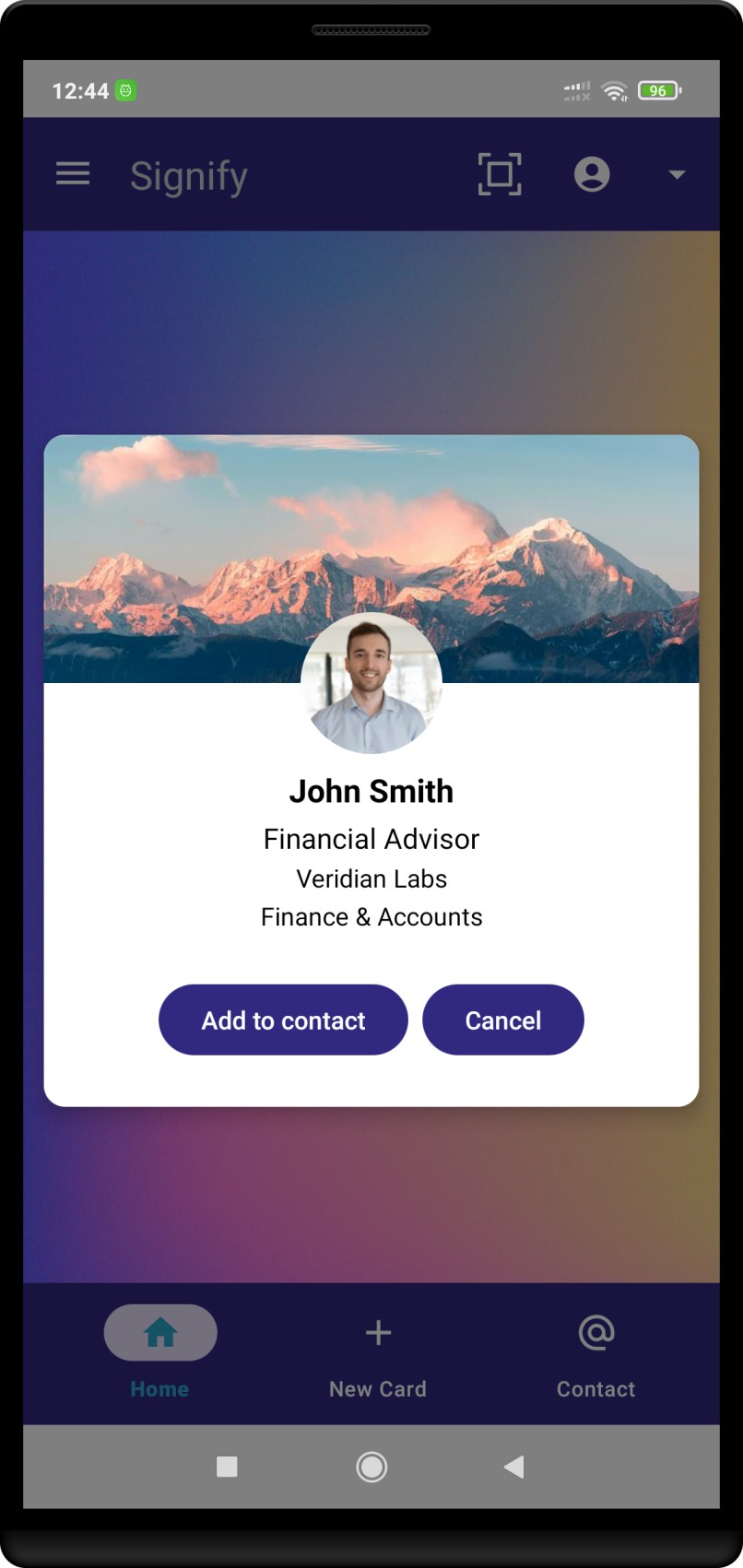
Take a moment to review your card from top to bottom. Check for typos in your email address, ensure your phone number is correct, and make sure your images are not awkwardly cropped.
When everything looks perfect, tap Save at the bottom right of the screen. You should see a satisfying “Card Created!” confirmation message. You can always return to edit this card later using the Signify dashboard.

Share Your Card
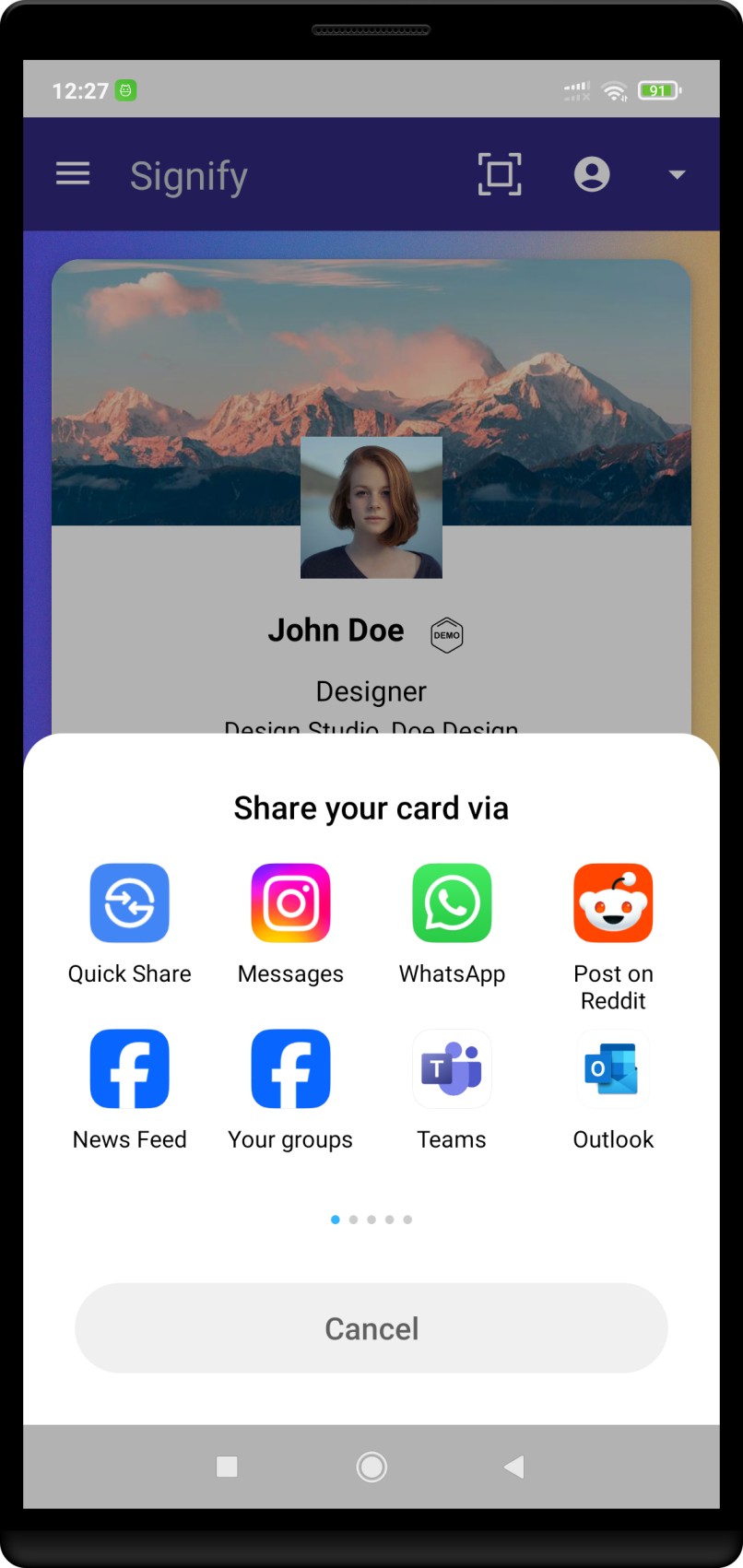
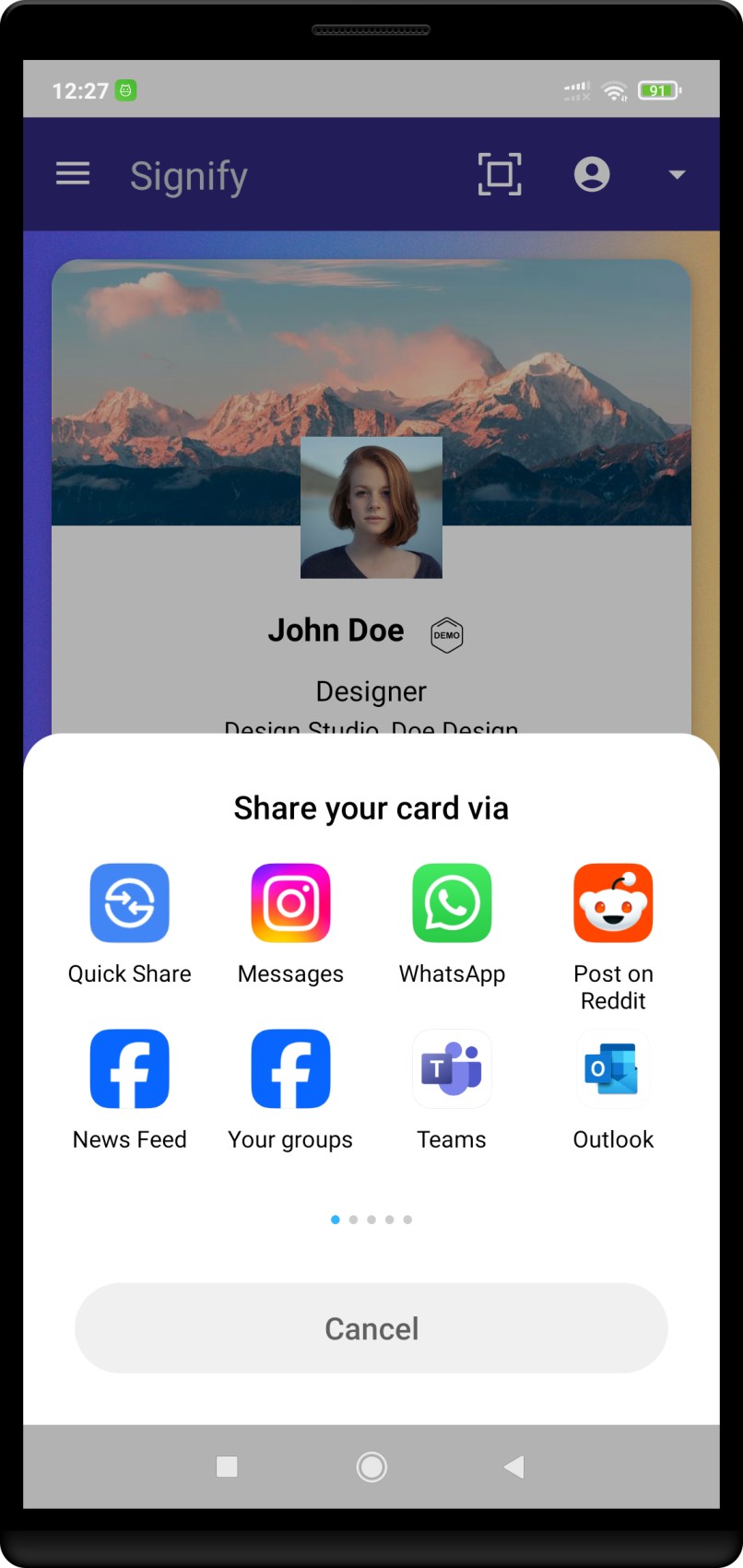
Now for the best part: sharing your new identity! On the main screen, swipe until your newly created card is centered. Tap the QR Code icon to enlarge it.
Have the person you are networking with open their smartphone camera and scan your code. Your profile will instantly open in their browser, where they can tap to save your contact info directly to their phone. No app download required for them!
If you prefer a physical touch, consider tapping your phone against a Signify NFC business card for an instant, futuristic sharing experience.
Quick Recap
Creating a digital business card shouldn't be complicated. If you ever get lost, just remember the core workflow:
With your card saved, you can now leverage advanced features. If you are part of a larger organization, explore Signify for Teams to ensure brand consistency across your whole team.
Frequently asked questions
Do the people I share my card with need to download the Signify app?
No. Your digital card opens in any standard web browser. When they scan your QR code or click your link, they can view your profile and save your contact information instantly without downloading anything.
Can I have multiple digital business cards?
Yes. Many professionals maintain one card for their primary job and another for a side hustle, freelance work, or a specific project. Depending on your subscription tier, you can create and manage multiple cards easily.
What happens if I change my phone number or company?
This is the best part of a digital card. You simply log into your account and update your details in the Signify dashboard. Anyone who already has your link or saved your card will instantly see the updated information.
How do I remove a contact method I no longer use?
Open the app, edit the specific card, navigate to the contact methods section, and tap the trash can icon next to the entry you wish to remove. Don't forget to hit Save again.
Ready to modernize your networking?
Stop relying on paper cards that get thrown away. Create a dynamic, interactive Signify digital business card today and make every connection count.
Create Your Digital Business Card