
Signify Teams gives organizations one place to manage employee digital business cards, team invitations, seats, company branding, shared contacts, analytics, and CRM connections. Getting started involves choosing a team plan, completing checkout, and configuring your organization workspace.
While individual digital business cards are powerful, scaling that power across an entire organization requires a centralized approach. You need to ensure brand consistency, manage employee access, track engagement across teams, and handle billing seamlessly.
This guide walks through the entire process, from creating your team on the Signify website to reaching your organization dashboard and preparing it for your employees. The steps follow the current Signify Teams pricing, checkout, and organization setup workflow.
Start from the Signify Teams page
Begin by opening the Signify Teams page. Select Create Your Team to begin setting up your organization.
If you are already signed in, you can continue directly to team setup. If you are not signed in, Signify will ask you to log in or create an account. After authentication, you will be safely returned to the team setup process. You can then proceed to configure the subscription for your organization.
Configure your team plan
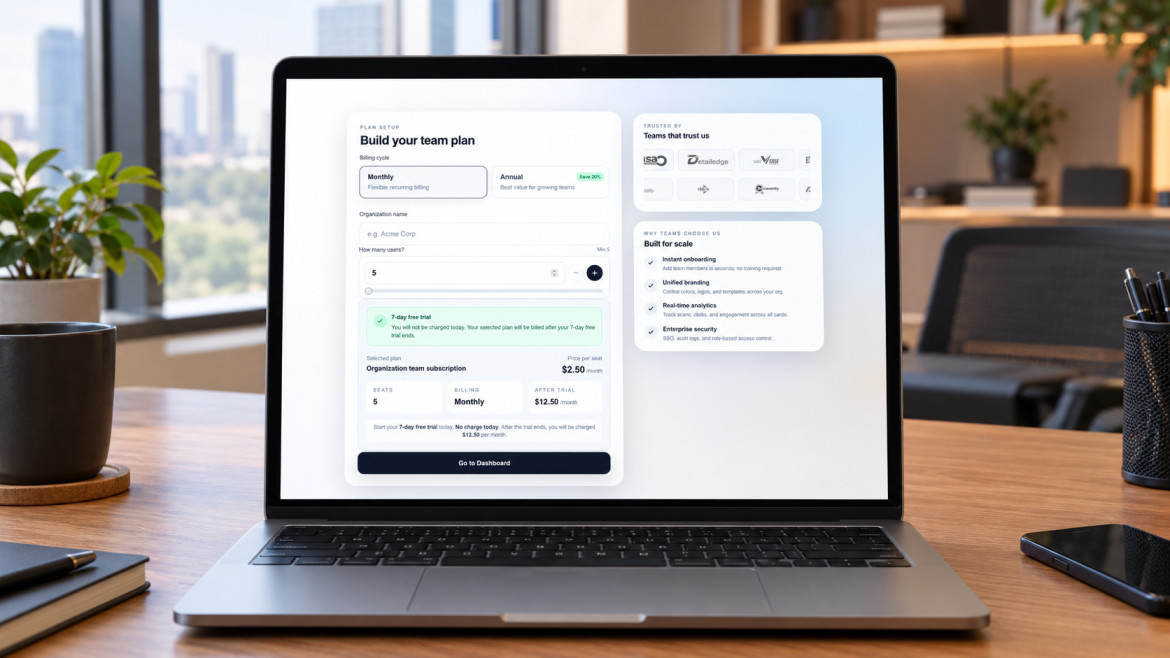
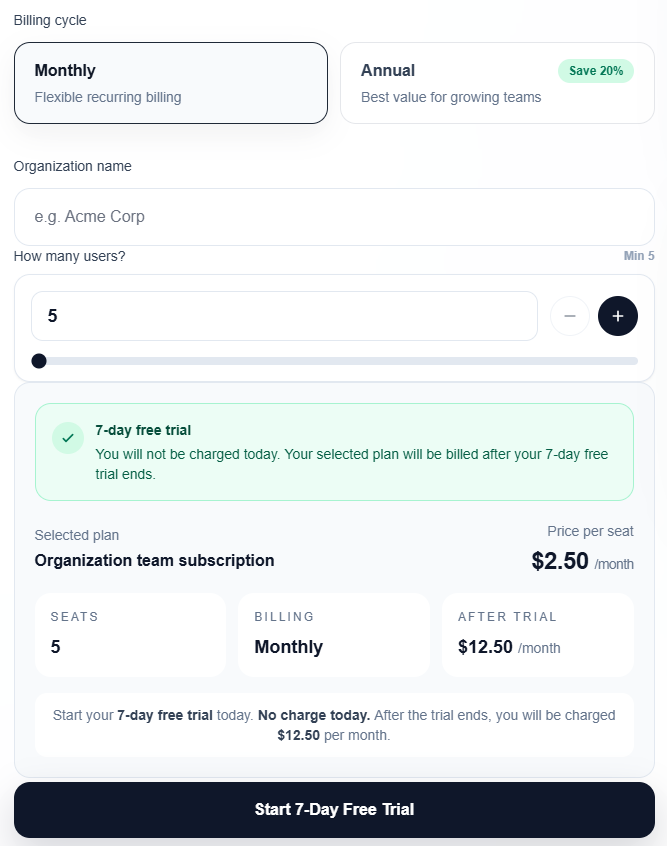
On the team pricing page, select the subscription that fits your organization's requirements. You will need to provide your organization name, choose a billing cycle, and select the number of seats.
- Enter your organization name: Provide the name your team will use in Signify.
- Choose a billing cycle: Select monthly or annual billing.
- Select the number of seats: Choose between 5 and 100 seats. Your seat count determines how many team members and active invitations your team can support.
- Review the pricing: Check the displayed price per seat and the total cost for the selected billing cycle and seat count.
- Start your free trial: Select Start 7-Day Free Trial to continue to checkout.
Choose Monthly or Annual Billing
Signify offers flexible billing to suit your organization's financial preferences.
| Billing Cycle | Cost per Seat | Billing Details |
|---|---|---|
| Monthly | $2.50 / month | Pay on a recurring monthly subscription cycle. |
| Annual (Save 20%) | $2.00 / month | Billed annually. The pricing page displays the 20% savings compared with monthly billing. |
Example: Pricing for Five Seats
To help you plan your budget, here is how the minimum seat requirement (5 seats) breaks down:
| Billing Cycle | Price for Five Seats | Billing Period |
|---|---|---|
| Monthly | $12.50 | Per month |
| Annual | $120 | Per year |
Complete checkout and let Signify set up your workspace
After choosing your plan, continue through the secure Stripe checkout to complete the subscription setup. Review your selected billing cycle, seat count, and displayed total before finishing.
Once checkout succeeds, Signify automatically opens the workspace setup page at /teams/setup. This page gives Signify a moment to securely prepare the organization subscription, allocate the seats, and provision team access.
When the setup process is complete, select Go to Dashboard to continue to your organization workspace.
Add your company details and branding
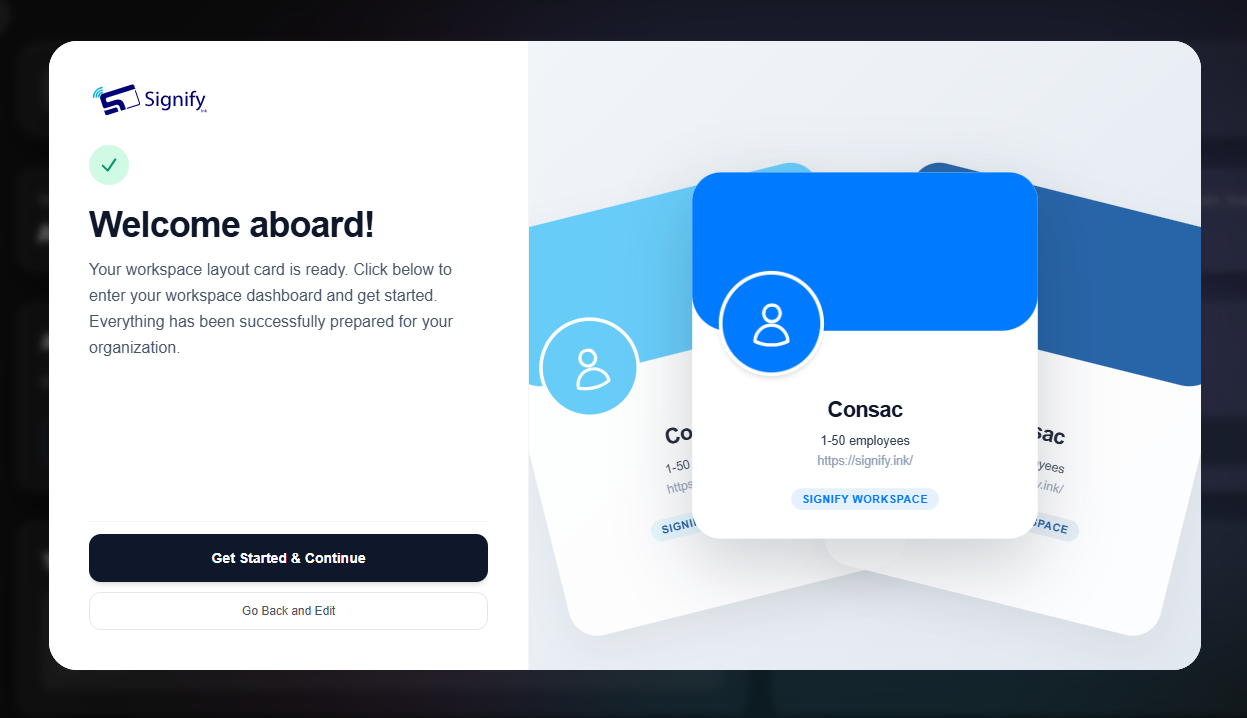
The first time you enter the organization dashboard, a setup modal will ask you to provide your company information. This establishes the basic details for your team's workspace and ensures your branding is applied correctly across all employee cards.
Enter the Company Information
- Company name (Required): Enter the official name of your organization.
- Company size (Optional): Provide information about the size of your company to help us tailor your experience.
- Company URL (Optional): Add your organization's website address.
- Company logo (Optional): Upload your logo to establish your company's visual identity across the platform.
Review and Save Your Setup
- Complete the required company name and any optional details you want to provide.
- Select Next to review the workspace preview.
- Check the information carefully. Use the option to go back if you need to make any corrections.
- When everything looks correct, select Get Started & Continue to save your setup.
After saving your company details, you can begin using the full capabilities of the organization dashboard.
Open your organization dashboard
Once the company setup is complete, Signify takes you to the organization dashboard at /organization/dashboard. This is the central command center for managing your team.
Start by reviewing your team's seat usage. The dashboard shows the number of purchased, used, and available seats, helping you understand your current capacity before inviting more people.
Understand Your Team Seats
| Seat Metric | What It Means |
|---|---|
| Purchased seats | The total number of seats included in your selected plan. |
| Used seats | Seats currently in use by active members and pending invitations. |
| Available seats | Remaining capacity for additional members and active invitations. |
Your selected seat count determines the capacity of your team. If your organization grows and needs additional capacity, use Upgrade Seats to increase the number of seats.
Continue configuring your team
With your organization created and your dashboard ready, you can begin setting up the tools your employees will use. These next steps are optional and can be completed in whatever order suits your organization.
Invite Members and Manage Access
Invite employees by email and assign the appropriate team roles. Use the organization dashboard to manage team access and monitor available seat capacity as members join. To learn more about this process, read our guide on managing Signify Teams members.
Apply Company Branding and Templates
Configure the company's branding and available templates for employee digital business cards and email signatures. This ensures every team member presents a consistent, professional identity that aligns with your corporate guidelines.
Manage Team Cards and Shared Contacts
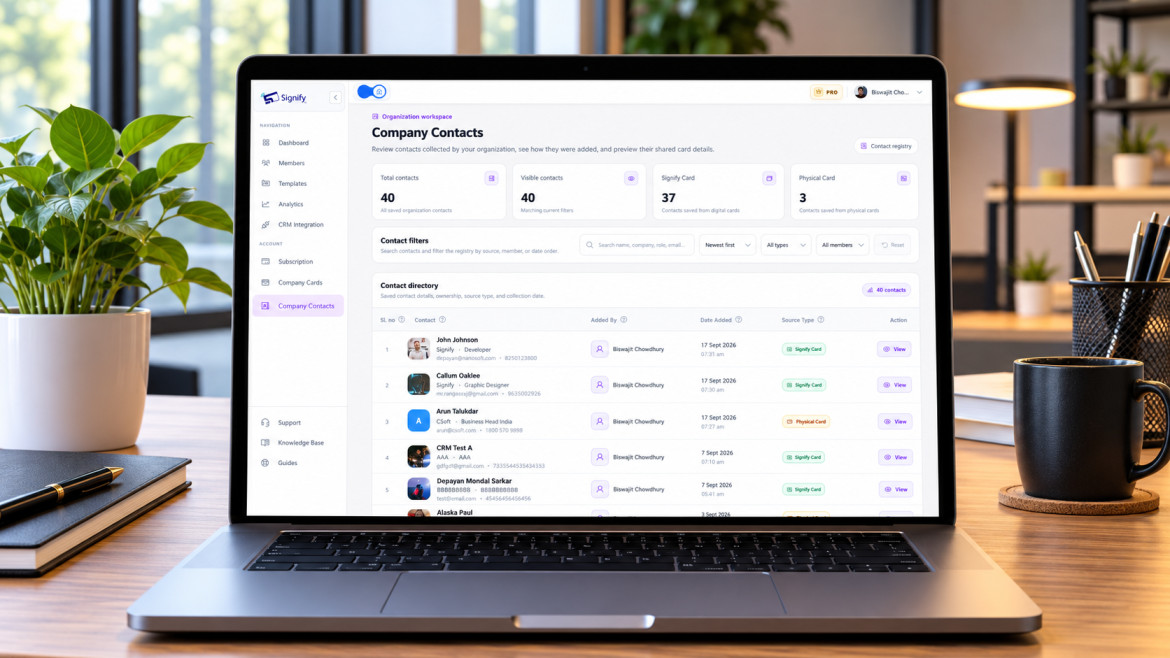
Use the available team tools to manage company cards and view contacts saved by team members. Shared contacts can be organized with notes and tags to support your organization's contact management workflow, ensuring leads aren't siloed within individual accounts.
Review Team Analytics
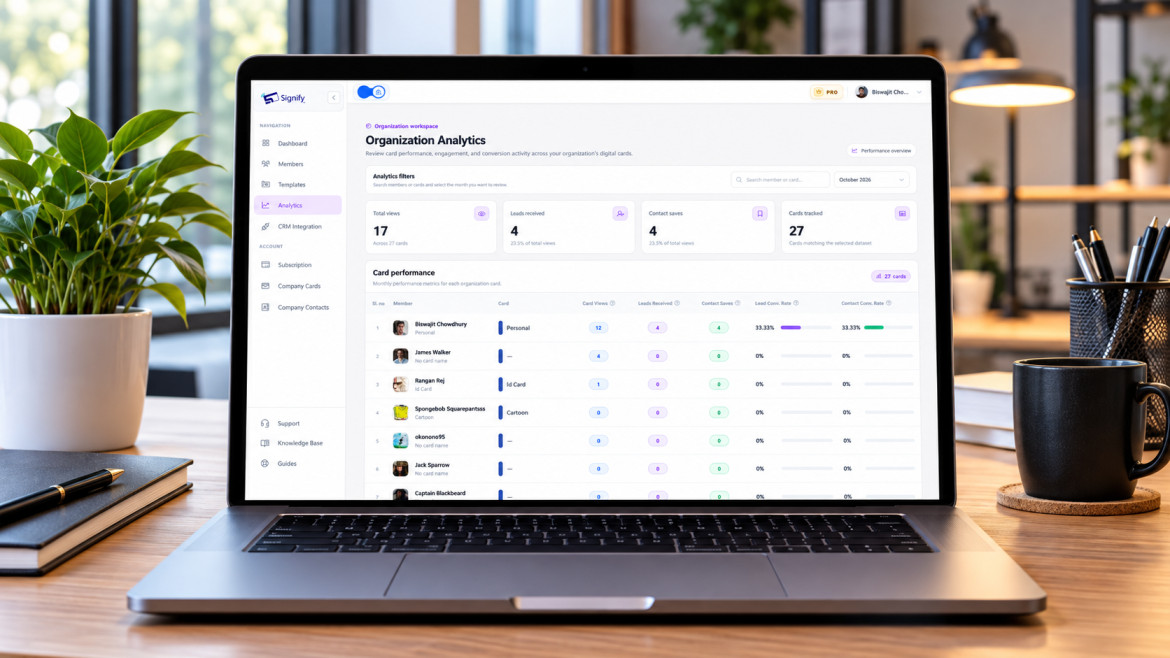
Use analytics to review card views, saves, and leads. Depending on the available reports, you can examine performance by card or by team member to understand how your team's digital cards are being used and identify areas for improvement.
Connect Your CRM
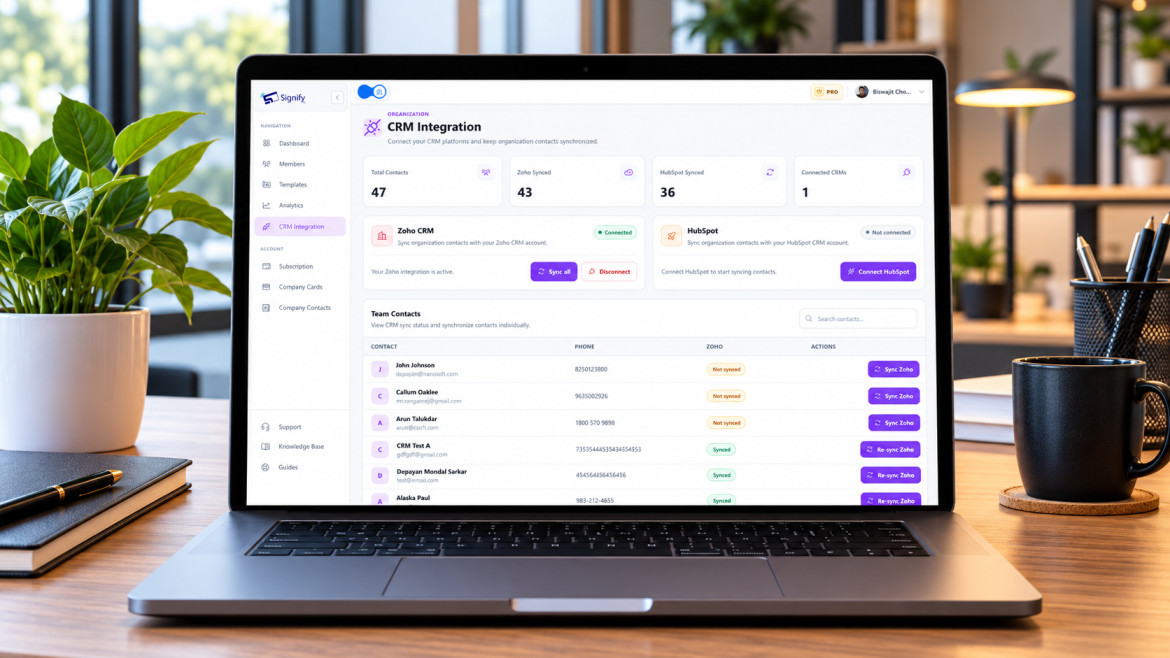
Signify Teams supports Zoho CRM contact synchronization. Connect your team's CRM using the available integration settings, sync contacts, and re-sync updated details when needed.
Use Dashboard Support Tools
If your organization needs assistance, you can submit support requests directly through the dashboard and track their progress to ensure quick resolution.
Add more seats as your organization grows
Your original seat selection sets the capacity of your team plan. As more employees join or you need additional invitation capacity, review the purchased, used, and available seat totals in the organization dashboard.
When your organization needs more capacity, select Upgrade Seats to increase your team's seat allocation. Review the updated plan and pricing presented during the upgrade process before proceeding.
Frequently asked questions
Where do I start creating a Signify team?
Visit the Signify Teams page and select Create Your Team. Sign in or create an account if prompted, then continue with team setup.
How many seats can I select?
The team pricing page lets you select between 5 and 100 seats. Your chosen seat count determines how many members and active invitations your team can support.
How much does Signify Teams cost?
Monthly billing is $2.50 per seat per month. Annual billing is $2.00 per seat per month, billed annually, with 20% savings displayed. Five seats cost $12.50 per month or $120 per year, respectively, after the seven-day free trial.
Will I be charged during the seven-day free trial?
The pricing page states that you will not be charged during the seven-day trial and that there is no charge today. Billing begins after the trial period ends.
Why does Signify open a setup page after checkout?
After checkout succeeds, Signify opens /teams/setup while it prepares billing, seats, and team access. When setup is ready, select Go to Dashboard.
Which company details are required?
Company name is required. Company size, company URL, and company logo are optional. After entering your details, select Next to review the preview, then select Get Started & Continue to save.
Where can I see my purchased and available seats?
Visit the organization dashboard at /organization/dashboard. It displays purchased, used, and available seat totals.
Can I add seats after creating my team?
Yes. Use Upgrade Seats in the organization dashboard when your team needs additional capacity. Review the updated plan and price presented during the upgrade.
Where can I learn more about Signify?
Visit Signify.ink to explore digital business cards, smart QR codes, NFC cards, Signify Teams, and other Signify solutions.
Your Signify Teams workspace is ready to grow
Creating a Signify Teams workspace involves choosing a plan, completing checkout, entering company details, and accessing your organization dashboard. From there, you can invite employees, configure branding, manage contacts and cards, review analytics, and connect Zoho CRM.
Create your Signify Team