
Signify Analytics helps you understand how people interact with your digital business cards. Instead of guessing which card is attracting attention, you can review recorded card views, incoming leads, contact saves, monthly activity, and conversion rates in one place. The page is part of the Signify Pro plan and gives you a clearer picture of your professional networking and engagement.
This guide walks through the Analytics page step by step. You will learn how to choose a card, interpret the summary totals, read the Leads Received, Contact Saves, and Card Views charts, understand the Conversion Funnel, and see what the page does and does not currently measure. The steps follow the current Signify Analytics workflow and the fields available on the dashboard.
What is Signify Analytics?
Signify Analytics is a dashboard inside your Signify account that brings recorded engagement data for your digital business cards together in one place. It shows how often a card has been viewed, how many leads it has received, how often visitors saved the card or downloaded its contact details, and how those figures change month by month.
A digital business card is more than a static profile. Once you share it, people can open it, save your contact details, or send you a lead through its fields. Signify Analytics records that activity so you can compare cards, review engagement over time, and see which contact fields visitors interact with most.
If you are new to digital business cards, start with the Signify digital business card overview and the available Signify solutions. To create a card first, open Create a Card in your Signify account.
Before you start: check your plan and card
Signify Analytics is a Pro feature, so confirm that your account is on a plan that includes it before you begin. You will also get more value from the dashboard if the card you want to review is already published and shared, because the charts and summary figures reflect recorded activity rather than forecasted or estimated numbers.
- Plan access: Signify Analytics is available with Signify Pro.
- Card readiness: review a card that has been shared so it has recorded views, saves, or leads to display.
- Correct card selection: each card has its own analytics, so decide which card you want to examine before opening the page.
- Time zone awareness: monthly charts follow your local time zone, so recent activity may shift between months if you travel or change time zones.
Choose a card to review
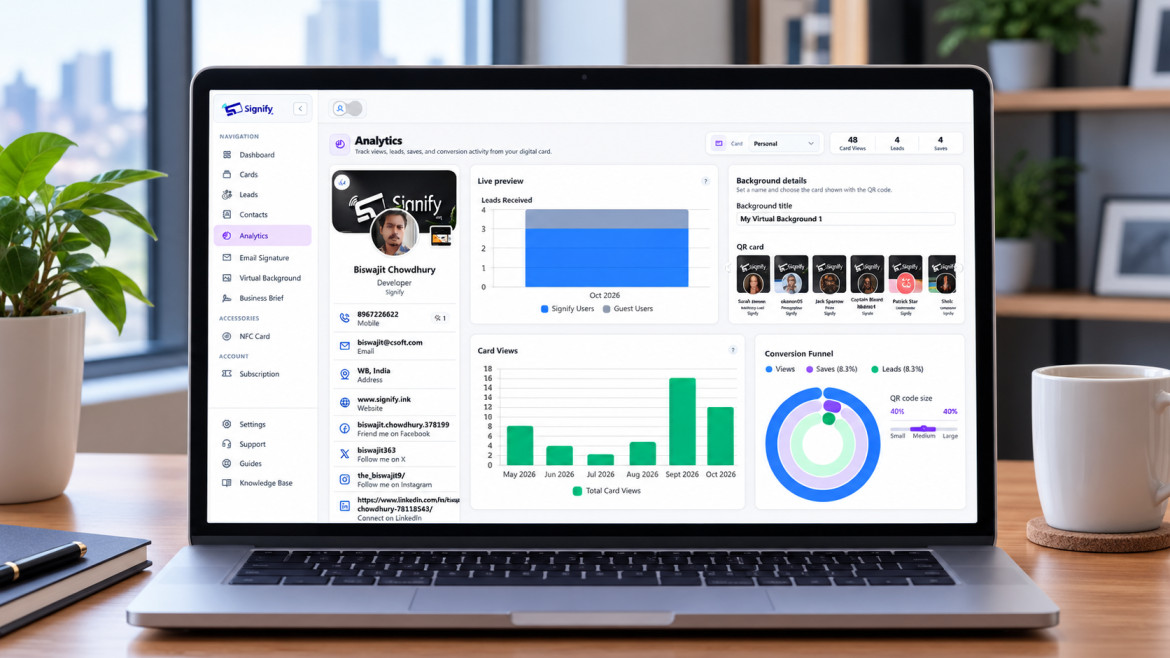
Open Analytics from your Signify account. Use the Card selector at the top of the page to choose which digital business card you want to examine. When you select a different card, the summary figures, the card preview, and the charts all update to reflect that card's recorded activity.
The Analytics page also refreshes its figures automatically about every 30 seconds, so the totals and charts stay close to real time while you review them. You do not need to reload the page manually.
 }})
Understand your analytics summary
The summary section displays three key totals for the selected card: Card Views, Leads, and Saves. These figures represent the recorded history currently available for that card, and they update when you select a different card.
Card Views
Card Views shows the total number of recorded views of your public Signify card. It counts views, not unique people, so it should not be interpreted as the number of different individuals who have seen your card. A single visitor who opens the card more than once can contribute more than one view.
Leads
Leads shows the number of leads received for the selected card. Leads can come from Signify users sharing their own cards or from guests submitting their contact details without a Signify account. The Leads Received chart breaks these two sources apart month by month.
Saves
Saves counts recorded instances of visitors saving the card or downloading its contact details as a VCF file. These actions indicate ways people chose to keep your information for later, and the Contact Saves chart separates the two behaviors.
Explore the digital business card preview
The Analytics page includes a preview of the selected card on the left side of the dashboard. It shows your digital business card as visitors see it, helping you connect the engagement figures with the information people actually interact with.
Some contact fields may display a count beside them. These counts represent recorded interactions with individual fields, such as a phone number, email address, or website link. Fields without recorded interactions do not display a count, so the preview can help you identify which available contact options have received engagement.
 }})
Read the Leads Received chart
The Leads Received chart uses stacked monthly bars to distinguish between two lead sources. Each month's full bar combines both categories, so you can compare total lead volume and the balance between the two sources at a glance.
- Blue: leads sent by Signify users using their own Signify cards.
- Gray: guest leads submitted by people without a Signify account.
Hover over a bar to see the recorded counts for that month. Over time, the chart can help you see whether your leads are coming mostly from other Signify users, from guests, or from a mix of both.
 }})
Read the Contact Saves chart
The Contact Saves chart uses stacked monthly bars to show how visitors kept your card's information. The two segments reflect the two main ways someone can retain your details from the card.
- Purple: contact saves.
- Gray: VCF downloads.
This breakdown helps you understand the recorded mix of people saving your contact and people downloading a VCF file. Each monthly bar combines both categories, and hovering over a bar shows the recorded counts for that month. If you notice a month with a high number of VCF downloads, it may be worth comparing that with how you shared the card during that period.
 }})
Read the Card Views chart
The Card Views chart shows the total recorded views for each month. Each green bar represents that month's views, so taller bars indicate more recorded views during a particular month.
Comparing the bars can help you identify periods when your digital business card received more or less attention. If you shared the card at a conference, in a campaign, or through a new channel, the Card Views chart is one way to see whether that activity is reflected in recorded engagement.
 }})
Understand the Conversion Funnel
The Conversion Funnel compares recorded card views with saves and leads. It uses three rings to present the view baseline and the two engagement rates.
- Blue ring: the 100% card-view baseline.
- Purple ring: the save rate.
- Green ring: the lead rate.
The rates are calculated by comparing the number of saves and leads with the number of recorded views.
Save rate = saves ÷ views × 100
Lead rate = leads ÷ views × 100
For example, a 10% save rate means recorded saves equal one tenth of the recorded views used in the calculation. The lead rate applies the same principle to leads. These rates provide a way to compare how often recorded views are accompanied by saves or leads, but they are aggregate ratios and are not proof that each save or lead came from a different visitor.
 }})
| Chart | What it measures | Colors used |
|---|---|---|
| Leads Received | Monthly leads split by source | Blue = Signify user leads, Gray = guest leads |
| Contact Saves | Monthly saves split by method | Purple = contact saves, Gray = VCF downloads |
| Card Views | Monthly recorded views | Green bars |
| Conversion Funnel | Save rate and lead rate against views | Blue = views, Purple = save rate, Green = lead rate |
What Signify Analytics does not currently show
Signify Analytics focuses on aggregate engagement and interactions with card fields. It does not currently provide a breakdown by visitor location, device, or demographic information.
This means you can use the available metrics to review overall activity and engagement patterns, but you cannot use this page to determine where visitors are located, which devices they use, or their demographic characteristics.
The charts also follow the recorded monthly history available to the selected card. There is no date-range selector, so use horizontal scrolling to explore older or less visible months when the charts extend beyond the screen. The months follow your local time zone.
Tips for getting more from Signify Analytics
A small amount of review discipline makes the dashboard far more useful. These practices help you turn the recorded figures into decisions about how you share and refine your card.
- Select the correct card: review each card individually because the summary totals and charts update based on your selection.
- Compare activity over multiple months: use the monthly charts to spot periods with higher or lower views, saves, or leads.
- Review lead sources: compare Signify user leads with guest leads to understand where recorded leads are coming from.
- Look at save behavior: compare contact saves with VCF downloads to see how visitors keep your information.
- Consider the conversion rates in context: review save and lead rates alongside total views rather than interpreting percentages in isolation.
- Remember what views measure: card views are recorded views, not unique individuals.
- Act on field-level counts: if a contact field shows no recorded interactions, consider whether it is still useful or whether it needs a clearer label.
If you manage cards for a wider organization, explore Signify for Teams and review the available Signify plans and pricing. Those pages are the best place to confirm current plan features and availability for Signify Analytics.
Frequently asked questions
Is Signify Analytics free?
No. Signify Analytics is available with a Signify Pro plan.
What does Card Views count?
Card Views counts recorded views of your public digital business card. It counts views, not unique people.
What is included in Saves?
Saves counts recorded instances of visitors saving the card or downloading its contact details as a VCF file.
What is the difference between Signify user leads and guest leads?
Signify user leads are sent using a Signify user's own card. Guest leads are submitted by people without a Signify account using manually entered contact details.
How often does the Analytics page refresh?
The Analytics page refreshes its figures automatically about every 30 seconds.
Why do the charts show different monthly activity?
Each chart represents a different type of recorded activity. Leads Received separates Signify user leads from guest leads, Contact Saves separates contact saves from VCF downloads, and Card Views shows monthly view totals.
How is the save rate calculated?
The save rate is calculated by dividing saves by views and multiplying by 100. For example, a 10% save rate means recorded saves equal one tenth of the recorded views used in the calculation.
How is the lead rate calculated?
The lead rate is calculated by dividing leads by views and multiplying by 100.
Can I filter Analytics by date range?
There is no date-range selector on the Analytics page. The charts show monthly activity, use your local time zone, and may require horizontal scrolling to view all available months.
Can I see visitor locations or devices in Analytics?
Not currently. Signify Analytics focuses on aggregate engagement and card-field interactions rather than location, device, or demographic breakdowns.
Where can I learn more about Signify?
Visit Signify.ink to explore digital business cards, smart QR codes, NFC cards, and other Signify solutions.
Understand how your digital business card performs
Signify Analytics brings together card views, leads, saves, field interactions, and conversion rates to help you review how people engage with your professional profile. Explore your card's recorded activity with Signify Pro and use the monthly insights to make more informed decisions about how you share your digital business card.
Explore Signify Pro