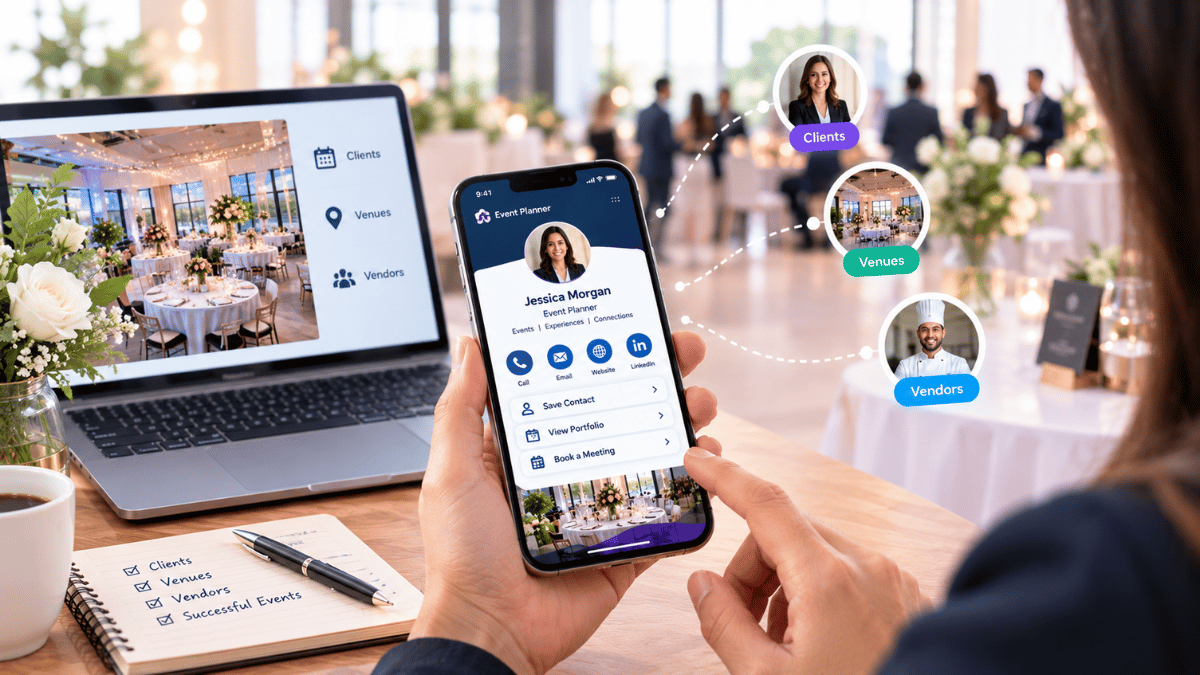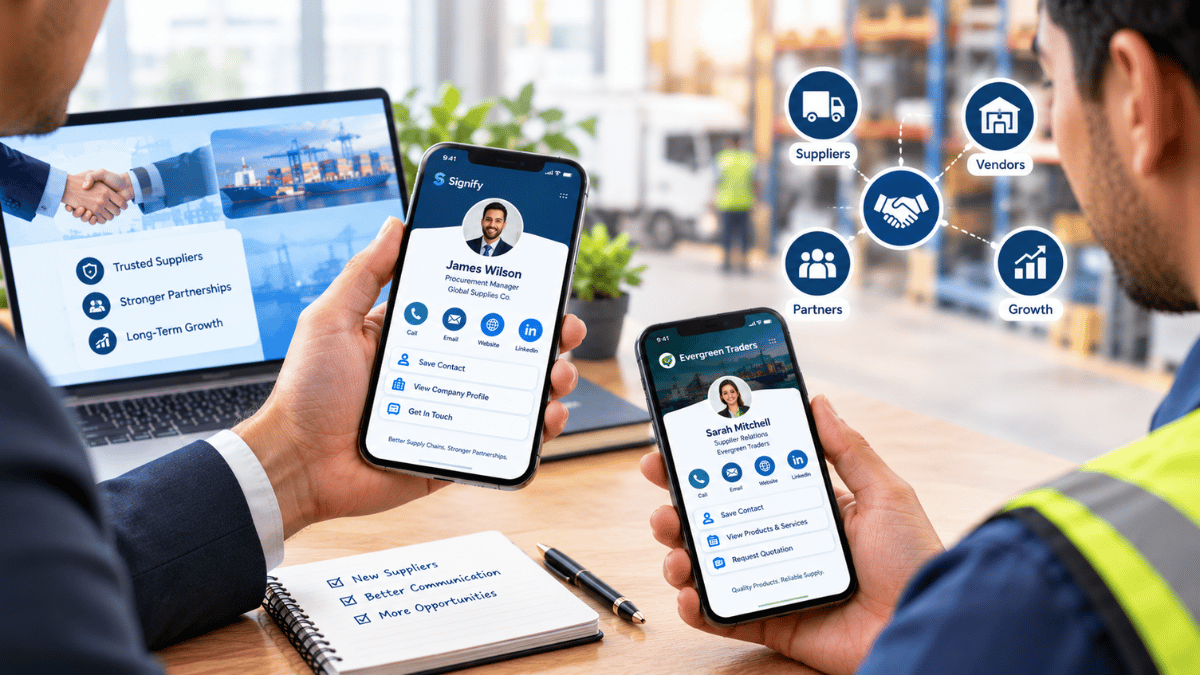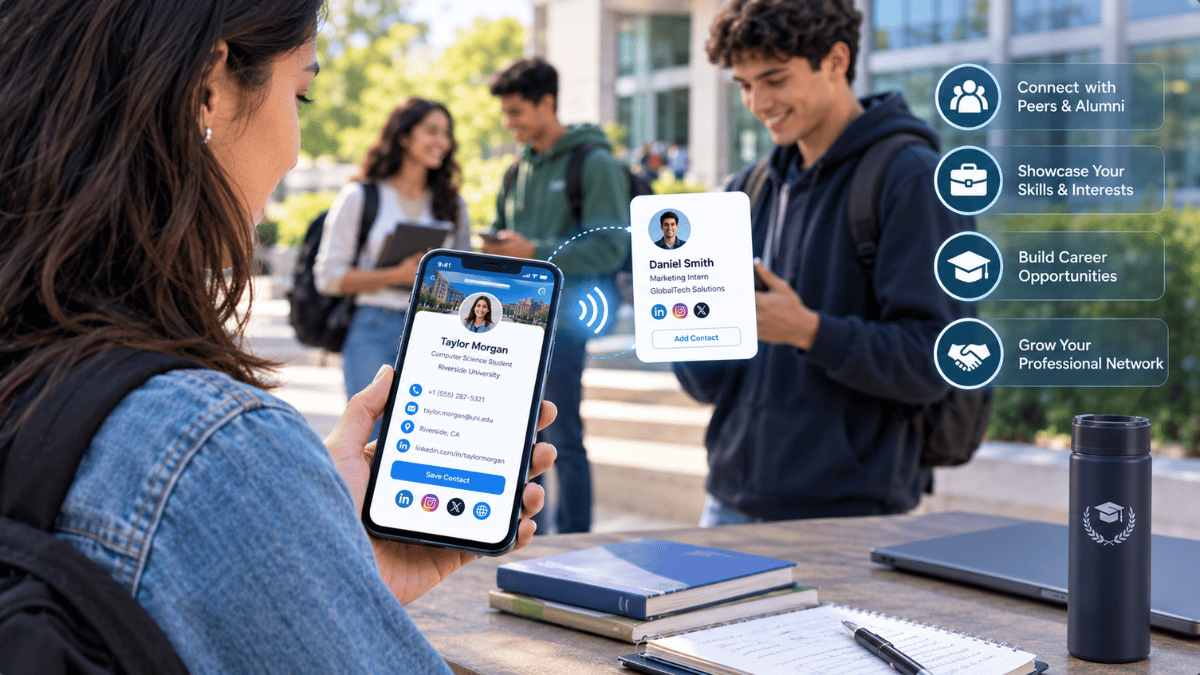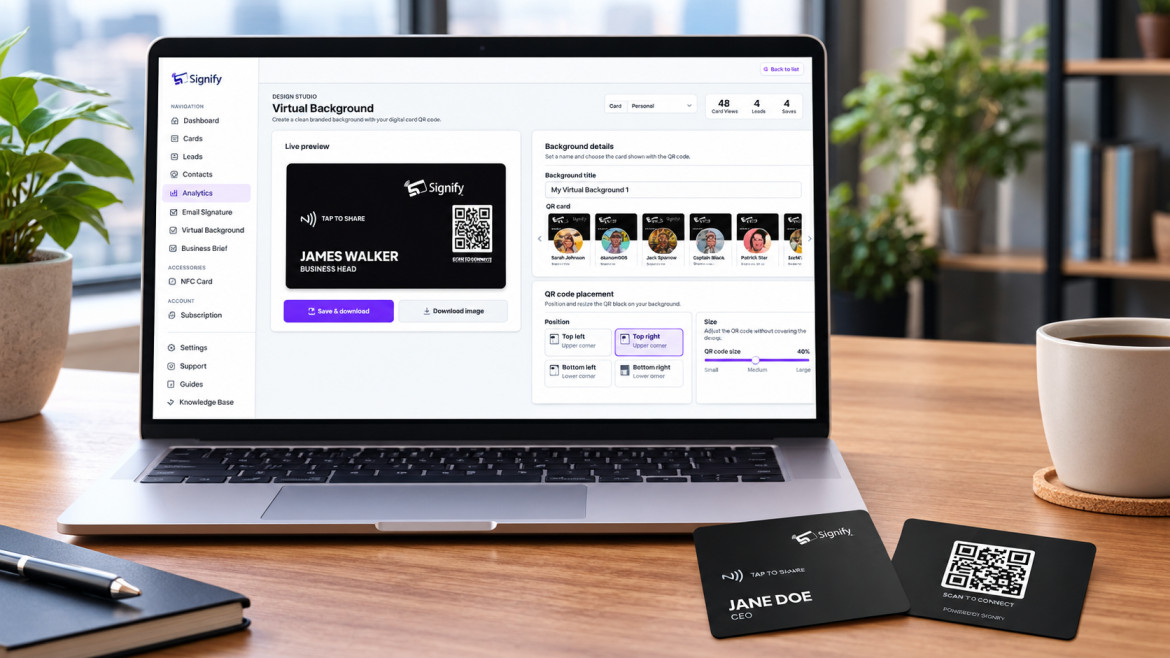

Make professional networking easier with Signify NFC business cards. Each card connects a physical design to your Signify digital business card, letting people open your profile with a phone tap or a scan of the QR code on the back. Choose a layout, personalize the printed artwork, and link the card to the digital profile you want to share.
This guide walks through the full NFC card workflow. You will learn what an NFC business card is, why Signify NFC cards offer two ways to connect, how the Canvas and Slate layouts differ, which materials and prices are currently available, how to link your digital profile, how to customize your design, and how to place and track your order. The steps follow the current Signify NFC card configurator and order pages.
What is an NFC business card?
An NFC business card is a physical card containing a small wireless chip. When someone brings a compatible phone close to the card, the phone can open the digital profile associated with it. NFC stands for Near Field Communication, a technology designed for short-range wireless interactions.
Signify NFC cards also include a QR code on the back. This gives people a second way to access your profile when tapping is not convenient or their phone does not support NFC. Recipients can open your public Signify profile in their phone browser without installing the Signify app. Signify app users can also scan the QR code through the app to access the card there.
If you are new to digital cards, start with the Signify digital business card overview and the available Signify solutions. To create the digital profile your NFC card will open, use Create a Card in your Signify account.
Why choose a Signify NFC business card?
A Signify NFC card pairs a tangible, well-made physical object with a digital profile you can keep up to date. Three benefits tend to matter most in day-to-day networking.
Share details with a tap
Give clients, colleagues, and new connections a convenient way to open your digital business card without manually typing your contact details.
Offer two ways to connect
Share your profile through the embedded NFC chip or the QR code printed on the back of your card.
Keep your digital details up to date
Your physical NFC card links to your selected Signify digital profile. When you update that profile, people accessing it through the same card can see the updated information without requiring a newly printed card.
 }})
Choose your NFC card style
Signify offers two layouts to suit different preferences. Choose the design that best matches your professional identity. Both layouts support the same NFC chip and QR code pairing.
Canvas
A modern vertical business card layout for a distinctive, contemporary presentation.
Slate
A classic horizontal business card layout for a familiar, traditional look.
 }})
 }})
The glossy-plastic versions of Canvas and Slate are printed at 600 DPI. Signify NFC cards combine physical branding with an embedded NFC chip and a QR code on the back.
Signify NFC card materials and prices
Choose from the listed materials according to your preferred look and budget. The current listed prices are shown below.
| Material | Price | Availability |
|---|---|---|
| Glossy plastic | $25 | Listed for ordering |
| Wood | $35 | Currently enabled in the configurator |
| Black metal | $70 | Coming Soon |
 }})
Link your NFC card to your Signify digital profile
Your selected Signify digital card determines which profile opens when someone taps your NFC card or scans its QR code. Set up this connection before placing your order.
- Sign in to your Signify account.
- Open the NFC card configurator for Canvas or Slate.
- Find the Your Digital Card Profile dropdown.
- Select the Signify digital card you want the physical NFC card to open.
- Continue customizing the printed design and review the preview before ordering.
If you have not created a Signify digital business card yet, create one first and then return to the NFC card configurator. You can browse the configurator as a guest, but you must sign in to link your digital profile and place an order.
 }})
Personalize your NFC business card
The Canvas and Slate configurators let you tailor your printed card to your personal brand or business. Review the available controls and use the on-screen preview to check your design before ordering.
Cardholder information
Enter the cardholder's name, job title, and company name so the physical card reflects the identity you want to present.
Themes, fonts, and colors
Choose a card theme and font style. For plastic cards, select a color or a preset background from the available configurator options.
Custom artwork and company branding
Upload your own front and back artwork in PNG or JPG format, up to 8 MB per upload. You can also upload a company logo to incorporate your brand into the design.
Preview before ordering
Use the on-screen preview to review your choices before submitting an order. Customizing the printed artwork does not change the selected Signify digital profile linked to the NFC chip and QR code. The physical artwork and the linked digital profile serve different purposes.
 }})
How to order a Signify NFC business card
Once you have chosen your card style and selected the digital profile to link, follow these steps to complete your purchase.
- Open the Canvas or Slate NFC card configurator.
- Select an available material and begin customizing your design.
- Sign in and choose the Signify digital card you want to link.
- Enter the cardholder details, choose your theme and font, and upload any artwork or company logo you need.
- Review the on-screen preview and confirm that your design and linked digital profile are correct.
- Select Order Now for an available material and continue through checkout. Shipping is calculated at checkout.
- Save your delivery address on the order page to help with checkout and fulfillment.
View your orders, receipts, and tracking details
Signify's NFC card order page lets you manage your delivery information and review previous purchases. Open your NFC card orders to access the available order details.
Open an individual order to view its receipt, current status, shipping details, and tracking information. Keeping your delivery address up to date can also help with future orders.
How to share your digital business card
After receiving your physical Signify NFC card, sharing your profile is straightforward. Both tapping and scanning lead to the same linked Signify digital profile.
- Ask the recipient to bring an NFC-enabled iPhone or Android phone close to your NFC card.
- The recipient can follow the phone's prompt to open your linked digital business card.
- If tapping is not convenient, ask the recipient to open their phone camera and scan the QR code on the back of the card.
- Both methods lead to the same linked Signify digital profile. The recipient can open the public card in a browser without needing the Signify app.
Best practices for your Signify NFC card
A well-prepared card is easier to use and stays useful for longer. These practices help you get the most from your physical card and its linked digital profile.
- Link the right profile: confirm the selected digital card in the configurator matches the identity you want to share before placing your order.
- Keep the digital profile current: update your job title, company, and contact details in your Signify digital card so the physical card always opens up-to-date information.
- Choose artwork that reads clearly: use legible fonts and sufficient contrast so the card looks professional in hand and in photographs.
- Upload appropriately sized files: PNG or JPG, up to 8 MB per upload, keeps the printed result sharp and the configurator responsive.
- Test before distributing: tap the card and scan its QR code with a phone to verify the correct profile opens before handing it to clients or event attendees.
- Review availability before ordering: confirm the material you want is currently enabled in the configurator, and check the final cost at checkout where shipping is calculated.
If you manage cards for a wider organization, explore Signify for Teams and review the available Signify plans and pricing. Those pages are the best place to confirm current features and plan availability.
Frequently asked questions
Does the recipient need the Signify app?
No. Recipients can open the public Signify digital card in their phone browser. Signify app users can also scan the card's QR code through the app.
What if the recipient cannot use NFC?
They can scan the QR code printed on the back of the physical card using their phone camera to open the same linked profile.
Do I need a Signify digital business card first?
Yes. You need a Signify digital card to link to your physical NFC card. Create your digital card before returning to the configurator to select it.
Can I change the digital details after ordering?
Your physical card links to your Signify digital profile. Updates made to that profile can be viewed through the same link, so you do not need to reprint the card just to update your digital details.
Can I upload my own card artwork?
Yes. The Canvas and Slate configurators support PNG and JPG uploads for front and back artwork, up to 8 MB per upload. You can also upload a company logo.
Can I order a black metal NFC card now?
Black metal is listed at $70 but is currently marked Coming Soon in the configurator, so it cannot currently be ordered there. Wood is currently enabled for ordering.
Where can I find my order and tracking information?
Visit the NFC card order page to review past purchases. Open an order to view its receipt, status, shipping details, and tracking information.
Where can I learn more about Signify?
Visit Signify.ink to explore digital business cards, smart QR codes, NFC cards, and other Signify solutions.
Make your next introduction easier
Pair a physical business card with your Signify digital profile and give people a convenient way to connect. Choose Canvas for a vertical look or Slate for a classic horizontal layout, personalize your design, and link the card to the profile you want to share.
Explore Signify NFC cards