
Signify Guides
Signify Virtual Backgrounds: Share Your Digital Business Card During Video Calls
Create a branded virtual background featuring one of your Signify digital business cards and its QR code. Your professional information stays visible during video calls, while anyone in the meeting can scan the QR code on screen to open your digital business card.
Share your card without interrupting the conversation: place your Signify QR code directly into a video-call background so meeting participants can scan it from their screen whenever they want to connect.
Where Can You Use a Signify Virtual Background?
Downloaded Signify virtual backgrounds can be used with video conferencing platforms that support custom background images, including:
- Zoom
- Google Meet
- Microsoft Teams
- Webex
Once the image is downloaded, add it as a custom virtual background in your video call platform's settings. The Signify QR code remains part of the image, allowing meeting participants to scan it directly from their screen.
 }})
How to Create a Signify Virtual Background
Create a Background
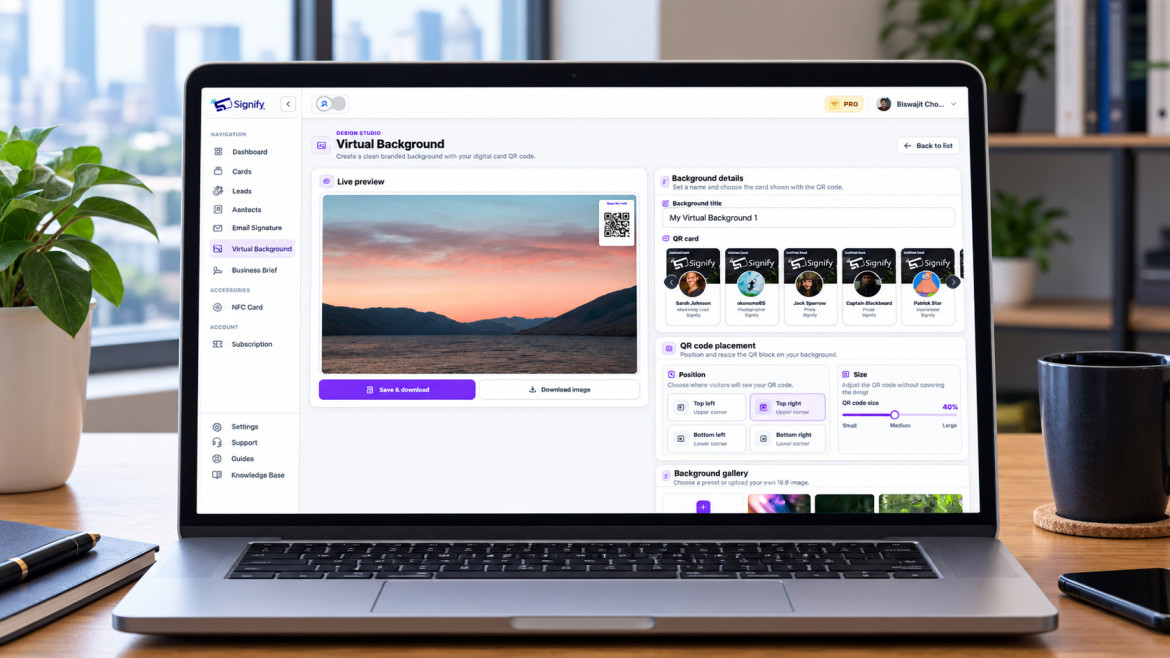
Open Virtual Backgrounds and select Create background.
- Enter a title to identify your background.
- Choose the Signify card you want to feature.
- Choose a preset from the background gallery, or upload your own PNG or JPG image.
When you select a Signify card, its QR code is embedded into the background design.
Uploaded images are cropped to a 16:9 aspect ratio so they fit standard video-call background formats.
Tip: You need a Signify digital business card before creating a virtual background. Create one from the Cards page first if you do not already have a card.
 }})
Position and Resize the QR Code
Use the position controls to choose where the Signify QR code appears on your virtual background.
- Top-left
- Top-right
- Bottom-left
- Bottom-right
You can also adjust the QR code size using the slider. Choose a size that keeps the code easy to scan without allowing it to dominate the background design.
 }})
Preview and Download Your Background
The Live preview updates in real time as you change the background image, linked Signify card, QR code position, or QR code size.
When the design looks the way you want, you have two download options:
- Save & download: saves the background to your Virtual Backgrounds page and downloads the image file to your device.
- Download image: downloads the current design without saving it to your Signify background library.
Before you download: check that the QR code has enough contrast, is not covered by other visual elements, and is large enough to scan when displayed in a video-call window.
Manage Saved Virtual Backgrounds
The Virtual Backgrounds page keeps your saved designs in one place. From your saved background library, you can manage each design individually.
- Preview: view the complete background design.
- Download: save the background image to your device.
- Delete: permanently remove the background from your Signify library.
 }})
Why Use a QR Code on Your Virtual Background?
A virtual background can do more than create a professional appearance during online meetings. By including your Signify QR code, it becomes a simple way for people to access your digital business card while you are still on the call.
Instead of reading contact details from the screen or asking someone to type a website address, participants can scan the QR code and open your Signify digital business card directly.
This is especially useful for networking calls, sales meetings, online events, interviews, webinars, remote presentations, and professional introductions.
Tips for a Better Signify Virtual Background
- Keep the QR code visible: choose a corner and size where the code remains easy to see during the video call.
- Avoid busy areas: use a background image that provides enough contrast around the QR code.
- Use a professional image: select a design that supports your personal brand without distracting from the meeting.
- Check the preview: make sure your QR code, card branding, and background composition look balanced before downloading.
- Use 16:9 images: uploaded images are cropped to a 16:9 aspect ratio for standard video-call background formats.
Signify Virtual Backgrounds FAQ
What is a Signify virtual background?
A Signify virtual background is a custom video-call background featuring one of your Signify digital business cards and its QR code, allowing people in the meeting to access your card from the screen.
Which video platforms support Signify virtual backgrounds?
Signify virtual backgrounds can be used with platforms that support custom background images, including Zoom, Google Meet, Microsoft Teams, and Webex.
Can I use my own image as a Signify virtual background?
Yes. You can upload your own PNG or JPG image. Uploaded images are cropped to a 16:9 aspect ratio for standard video-call formats.
Where can I place the QR code?
You can position the QR code in the top-left, top-right, bottom-left, or bottom-right corner of the background.
Can I change the size of the QR code?
Yes. Use the size slider to make the QR code larger or smaller while designing your background.
Can I save my virtual backgrounds in Signify?
Yes. Use Save & download to save the design to your Virtual Backgrounds page while also downloading the image.
Can I download a background without saving it?
Yes. Select Download image to download the current design without adding it to your saved Virtual Backgrounds library.
Can I delete a saved virtual background?
Yes. Open your Virtual Backgrounds page and use Delete to permanently remove a saved design.
Make Every Video Call a Networking Opportunity
Signify Virtual Backgrounds combine a professional meeting backdrop with a practical way to share your digital business card. Add your QR code, choose your preferred design, and let meeting participants connect with you directly from their screens.
Create a Signify virtual background and keep your digital business card visible wherever you meet online.
Explore Signify digital business cards