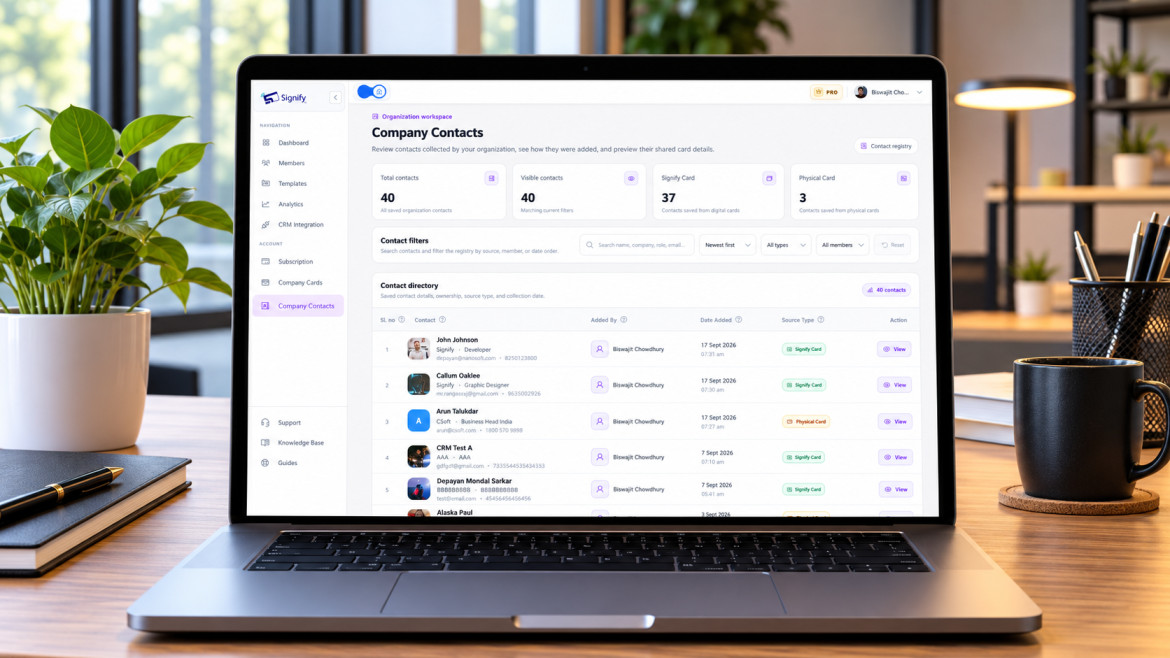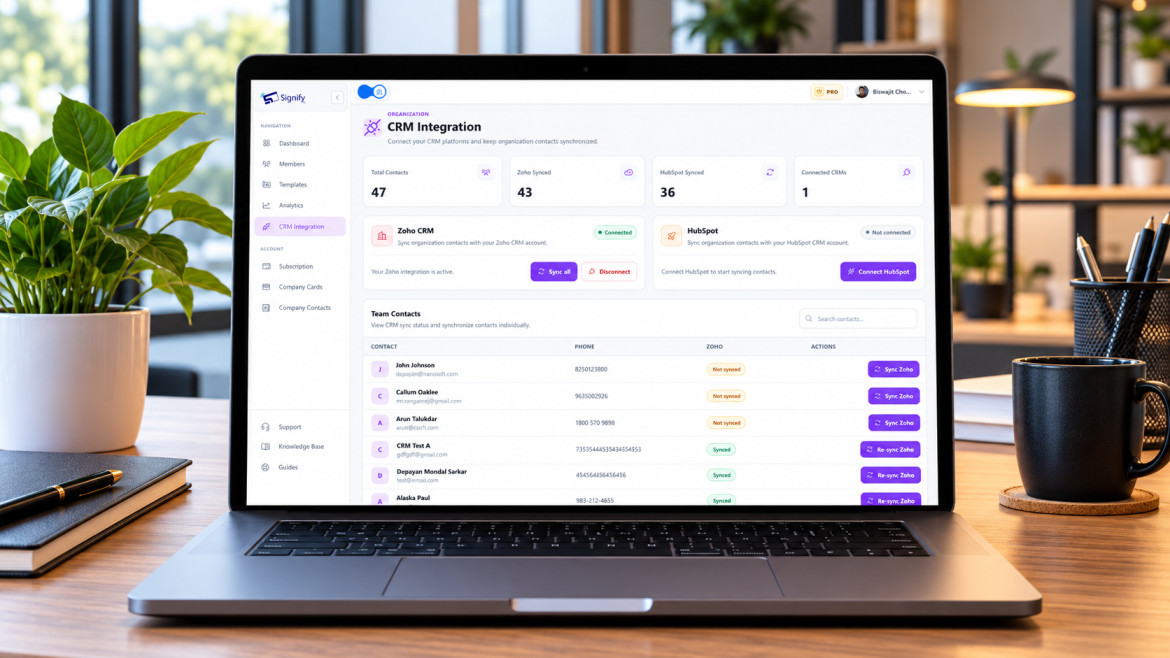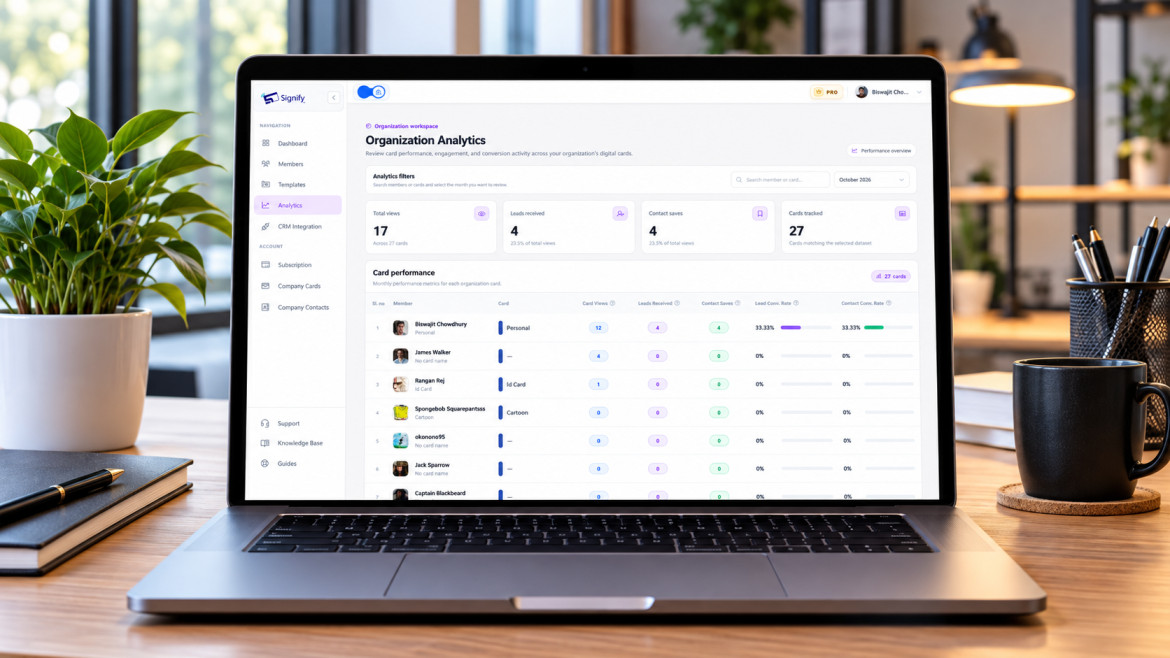

Organization card templates let you enforce a consistent brand identity across every employee’s Signify digital business card — while still letting each person keep their own name, title, and contact details. Instead of asking every team member to configure the company logo, theme color, and cover photo on their own, you set it once in a shared template and it syncs across the team. This guide walks through the full workflow: opening the editor, configuring branding, preparing assets, saving, and understanding exactly which fields propagate when you update. It is written for Signify Teams administrators and anyone responsible for organizational branding.
The use case is straightforward. A company with 40 employees should not have 40 different card designs. But a company that forces every employee onto an identical card loses the personal detail that makes a business card useful in the first place. A template thread that needle: branding stays uniform, identity stays individual. Done well, a shared template reduces onboarding time, removes design drift, and makes every employee’s introduction reinforce the same visual identity — which is why the feature sits at the core of Signify Teams.
What is an organization card template?
An organization card template is your team’s shared starting design for digital business cards. It defines the common branding and visual elements — the theme layout, the accent color, the company logo, the cover image, and the company name — that every employee uses to represent the organization.
Instead of asking each person to configure the company’s branding individually, an administrator manages it once through the active template. The template is then propagated to team members’ cards and is offered as a starting point when new cards are created through a template-enabled flow.
The goal is to keep the company’s presentation consistent while preserving each employee’s individual identity and contact details. A Signify digital business card template achieves this by separating the fields into two categories:
- Shared branding fields — company name, theme, accent color, cover photo, logo, company website. Controlled by the template, synchronized to every team card.
- Personal fields — employee name, job title, phone, email, personal social links. Controlled by the individual employee.
That separation is what makes the template useful. It enforces consistency where consistency matters, and preserves individuality where individuality matters. The result is a team that looks coordinated from the outside and remains personable from the inside.
Open the template editor
The template editor is located inside the Organization Dashboard, which is only available to users with access to an organization workspace. If you don’t see it, you may be signed in with a personal account rather than a team account — see Signify Teams for how organization access works.
- Sign in to your Signify account with access to your organization workspace.
- Open your Organization Dashboard.
- Navigate to Templates.
- Open the template editor to configure your organization’s shared card design.
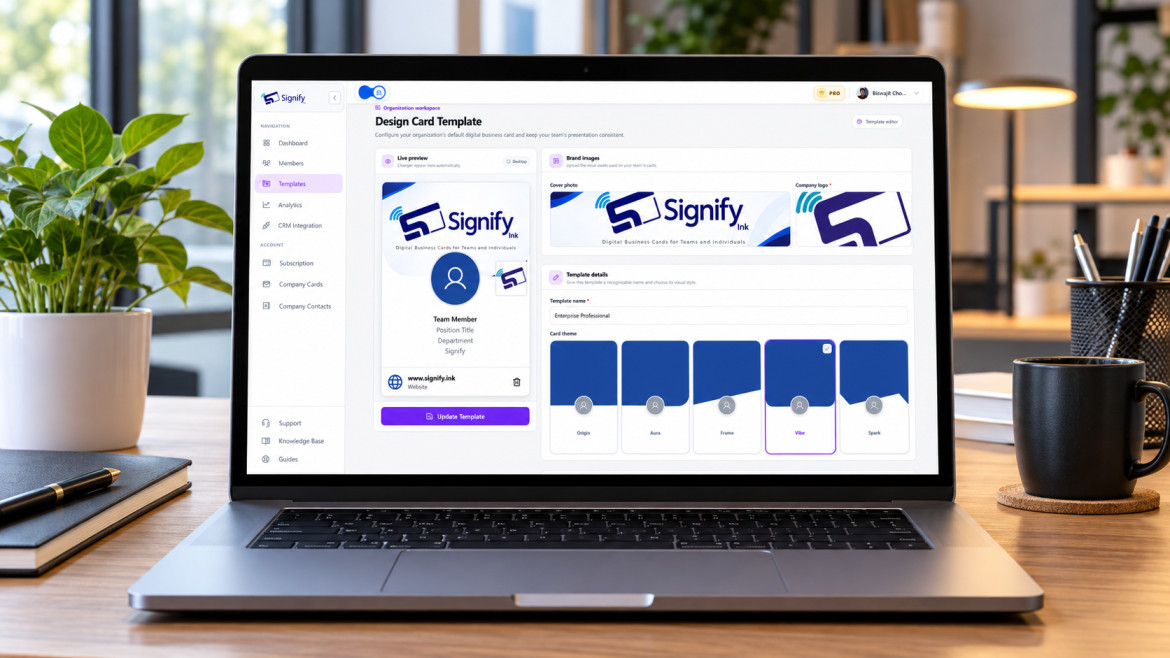
The editor displays a live card preview alongside the template settings. As you change the theme, color, or branding information, the preview updates in real time so you can review the design before saving. This is the same live preview that powers the individual card editor — it just operates on the shared template instead of a single card.
Configure theme, color, and branding
Customize the template to reflect your company’s branding. Work through the available settings in order and use the live preview to check the overall card after each change.
Name your template
Give the template a recognizable name — for example “Company Standard” or “Sales Team”. This helps your team understand its purpose when new cards are created.
Choose a card theme
Select from Signify’s five layouts — Origin, Aura, Frame, Vibe, or Spark. Pick the structure that best matches your organization’s visual style.
Set your theme color
Choose a preset color or use the color picker to match your company branding. This sets the accent color used across the template.
Upload your brand images
Add the company logo (required) and an optional cover photo. The editor recommends 512×512 px for the logo and 1200×675 px for the cover image.
Enter your company details
Add the company name (required) and, optionally, your company website. The website appears on every team card unless you leave it blank.
Verify the live preview
The preview panel updates as you adjust settings. Check that the logo, colors, and layout all read correctly before saving.
The theme choice is worth thinking through carefully, because it is the single most visible element in the template. Origin is the default Signify theme and works well for most professional organizations. Aura, Frame, Vibe, and Spark are more distinctive layouts — choose based on your brand’s tone. If you’re uncertain, check what your organization uses on its public-facing pages (see the Signify company page for an example of how a coherent visual identity is applied).
Prepare logo and cover image assets
Good-quality brand images are the difference between a template that looks coordinated and one that looks patchy. Use the editor’s recommended dimensions when preparing your files.
| Asset | Recommended size | Required? |
|---|---|---|
| Company logo | 512 × 512 px | Yes |
| Cover photo | 1200 × 675 px | No |
| Company name | Text field | Yes |
| Company website | Website URL | No |
Before uploading, check that the logo is clear at small sizes — the card displays it at a thumbnail scale on mobile, so fine text or intricate details may become illegible. A high-contrast logo with generous whitespace works better than one that fills the frame. For cover photos, choose an image that complements the theme color and leaves visual room for the profile photo and text overlay.
If you have an existing brand style guide, upload assets that conform to it. A shared template is only as consistent as the inputs — mismatched logos or off-brand cover images undermine the whole point of the exercise.
Review the live preview and save
Before saving, use the live preview to confirm that every element works together. This step catches the majority of design issues — an off-color accent, a clipped logo, or a cover image that fights the text overlay.
- Template name is meaningful to your team and reflects its purpose.
- Theme and theme color match your brand guidelines and are visible on both light and dark card layouts.
- Logo is clear at small sizes and does not clip the edges.
- Cover photo (if used) leaves room for the profile photo and does not interfere with text.
- Company name and website are spelled correctly and match your public materials.
- Preview on mobile — the layout should remain readable on small screens.
When you are satisfied, choose Create Template for a new template or Update Template to save changes to an existing one. The saved template becomes your organization’s active shared template.
How template updates affect team cards
Your organization has one active template. Updating it synchronizes the shared branding fields across team members’ cards, which means the whole team updates without anyone rebuilding their individual card.
What gets synchronized
- Company name
- Card theme
- Theme or accent color
- Cover photo
- Company logo
- Company website
What stays personal
Each employee’s name, job title, photo, phone number, email, and personal social links remain their own. The template controls the shared brand experience, not the individual identity of each team member.
The practical implication is that template updates should be treated as brand changes, not card-by-card edits. If your organization is rebranding, or if a new corporate logo is approved, the template update is the single step that rolls the change out. There is no reprint cycle and no need to notify employees — the change is live the moment it is saved.
For organizations managing other team-level surfaces, the same logic applies to email signatures and the public Business Brief page. A single coordinated update across all three produces a coherent brand refresh without weeks of individual changes.
Using the template for new team cards
The active organization template is also offered as a starting point when employees create their own cards through a template-enabled flow. That means new hires get a card that already carries the company’s branding from day one — no manual configuration, no risk of inconsistent logo or color choices.
The employee still customizes their own details: name, title, photo, phone, email, and personal links. But the shared branding — the theme, color, logo, cover image, and company name — is inherited from the template. The result is a card that looks like it belongs to the organization from the moment it is created.
This is one of the most tangible onboarding benefits of Signify Teams. A new sales hire can have a fully branded card in minutes, without a design review or a reprint order. The pricing page has details on seat tiers for teams.
Why use a shared organization template
A template is not just a design convenience — it is the mechanism that turns a collection of individual business cards into a coherent organizational presence. The benefits show up in three places.
Consistent brand recognition
A common layout, logo, and color scheme make the organization recognizable across every employee introduction — even when two team members share cards in the same meeting.
Individual identity preserved
Shared branding does not replace employee-specific information. Each card still carries the individual’s name, title, photo, and contact details.
Fast brand updates
When your organization’s branding changes, update the active template once instead of asking every employee to rebuild their card manually.
Faster onboarding
New hires can create a fully branded card in minutes through the template-enabled flow. No design review, no waiting for a print order.
For organizations evaluating a broader rollout, the template is the piece that makes the rest of Signify Teams coherent: shared contacts, team analytics, CRM sync, and the public Business Brief all reinforce the same visual identity. The solutions overview shows how the pieces fit together for different organization sizes.
Common mistakes to avoid
A template is only as effective as the attention paid to its setup. These are the mistakes that consistently cause problems when organizations roll out card templates.
Using a low-resolution logo
A logo that looks fine on a large screen can look blurry at the smaller sizes where cards are displayed. Upload a source image at 512×512 px or higher, with transparent background if the logo is designed for it.
Choosing an accent color that clashes with the theme
The accent color should work with the chosen theme layout, not fight it. Test the color against the preview on both desktop and mobile, and confirm that it remains legible on the card’s background.
Skipping the live preview
The preview exists to catch mistakes before they propagate. Organizations that skip it are the ones that discover a clipped logo or wrong company name after the update has already rolled out to every team card.
Treating the template as a personal card
A template controls shared branding, not individual details. Adding personal social links or contact information to the template is the wrong approach — those belong on each employee’s individual card. The template should only contain what should appear on every card.
Forgetting to update the cover image after a rebrand
The cover image is one of the most visible elements in the template. If your organization updates its brand imagery, update the cover image in the same pass as the logo and color — otherwise the cards carry a mix of old and new visuals.
Template governance best practices
A well-run template setup requires a small amount of governance — a clear owner, a review process, and a rule about who can make changes. These practices keep the template current without creating bottlenecks.
- Assign a template owner. One person (or a small team) should be responsible for updates. This prevents drift and makes it clear who to contact when a change is needed.
- Review before you update. Treat template changes as a brand change. Preview carefully, and if possible have a second reviewer confirm the design before the update is saved.
- Document asset sources. Keep the source files for the logo and cover image in an accessible location, with a note about which version is current. This avoids confusion when a future update is needed.
- Coordinate with email signatures and Business Brief. A branding change should be reflected across email signatures and the Business Brief page, not just the card template.
- Review the template quarterly. A short quarterly check catches stale covers, outdated themes, or drifted color usage before they become a problem.
- Keep personal data out of the template. The template is for shared branding. Personal fields belong on each employee’s card, and mixing the two creates confusion about what is being updated.
These practices do not require heavy process. They require a named owner, a review checklist, and a small amount of coordination with the teams that handle email signatures and public-facing pages. In exchange, the organization gets a card experience that looks coordinated across every employee — without a design review per hire.
For related reading, the Signify Insights library covers card creation, email signature setup, and team onboarding workflows in more detail.
Frequently asked questions
Where do I find organization card templates?
Open your Organization Dashboard and select Templates to access the template editor. If you don’t see the option, confirm that you are signed in with an account that has access to an organization workspace.
Which card themes can I use in a template?
The available themes are Origin, Aura, Frame, Vibe, and Spark. You can select a theme and set its accent color in the editor. Origin is the default and works well for most professional organizations.
Is a company logo required for the template?
Yes. A company logo and company name are required to create or update the template. A cover photo and company website are optional, but including them produces a more complete and recognizable card.
What image dimensions does the editor recommend?
The editor recommends 512 × 512 pixels for the company logo and 1200 × 675 pixels for the cover photo. Higher-resolution sources are fine and generally recommended, since they remain sharp at smaller display sizes.
What happens when I update the active template?
The shared company name, theme, accent color, cover photo, logo, and website are synchronized to team members’ cards. Personal information — employee names, job titles, photos, phone, and email — remains individual and is not changed by a template update.
Can the active template help with new employee cards?
Yes. The active template is offered as a starting point when members create cards through a template-enabled flow, so new employee cards follow the organization’s branding from the moment they are created. This is one of the onboarding benefits of Signify Teams.
How do I save my template?
Review the live preview and select Create Template for a new template, or Update Template to save changes to the existing active template.
Can I have more than one template?
Your organization has one active template at a time — the one that is synchronized to team cards. If your organization has multiple brand variants (for example, different brands under the same parent company), the appropriate solution is a separate organization workspace with its own active template.
Do template changes affect existing saved cards?
Yes. Because template changes propagate to team members’ cards, anyone who has saved a team member’s card will see the updated branding when they reopen it. This is how the shared template keeps every card current without reprints or manual updates.
Is the template available on the free plan?
Organization templates are a feature of Signify Teams. The free tier is designed for individual professionals and does not include organization-level templates. See the pricing page for current plan details.
Give your team a consistent digital identity
Set up a shared Signify organization card template to coordinate branding across every employee card — while keeping each person’s professional details their own.
Explore Signify Teams